How Real-Time Speech Translation Works on Windows
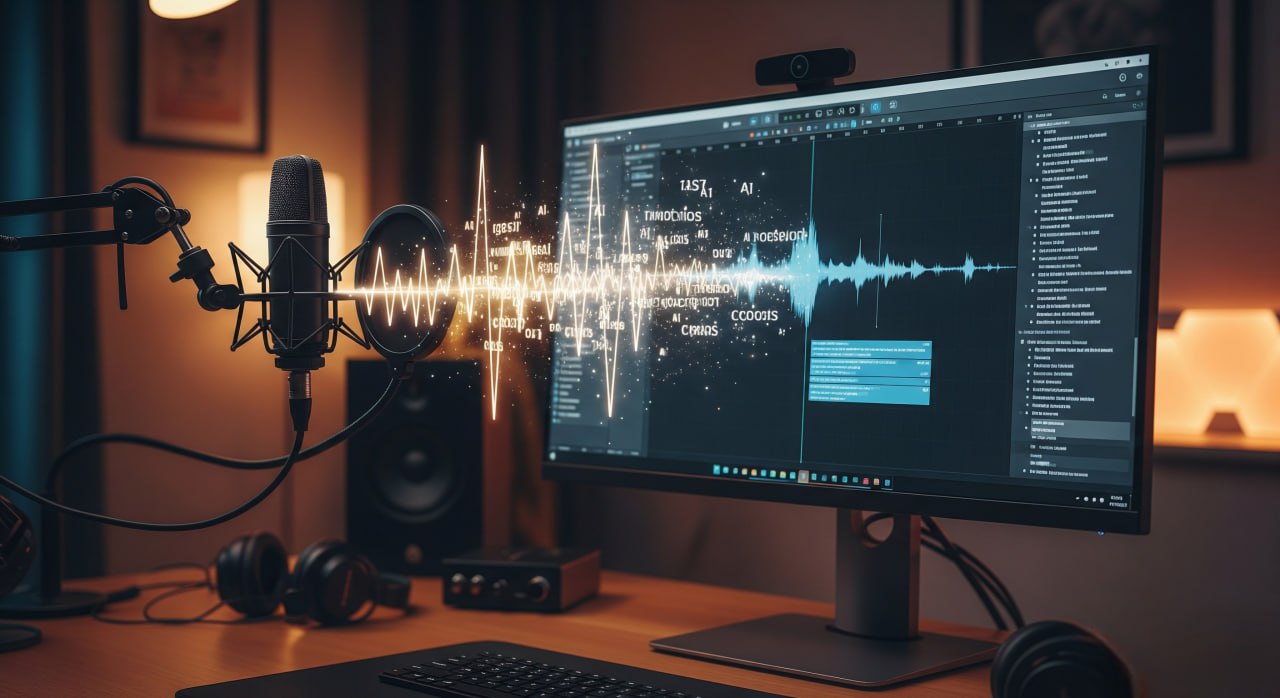
If you want real-time speech translation on Windows, the interesting part is not just the AI model. The full pipeline matters: audio capture, transcription, translation, latency, GPU use, and how subtitles are rendered on screen.
Real-time speech translation on Windows is no longer a cloud-only problem. With the right local pipeline, you can capture audio, transcribe it, translate it, and display subtitles on screen with low enough latency for real use.
This is the architecture behind tools like Aurora Subtitles: local audio input, Whisper for speech-to-text, TranslateGemma for translation, and an overlay renderer that keeps subtitles visible during games, meetings, and calls.
簡単な答え: リアルタイム音声翻訳の仕組み
実用的なスマホアプリは、次の 5 つのことをループで実行します。
- Captures system audio or microphone input on Windows.
- 意味��保持するのに十分なコンテキストを備えた短いチャンクにストリームを分割します。
- Transcribes speech with Whisper or a similar speech-to-text model.
- TranslateGemma などのモデルを使用してトランスクリプトを翻訳します。
- 最小限の遅延でライブ字幕をオーバーレイにレンダリングします。
難しいのは、精度と遅延のバランスを取ることです。モデルが大きいほど品質は向上しますが、通常、ライブ通話、ゲーム、授業、会議には GPU に適した小型モデルの方が���れています。
1. パイプラインの概要
`whisper realtime pipeline`、`speech translation architecture`、または `whisper subtitle overlay` を検索する場合、これは実用的なバージョンです。

  C --> D["Overlay subtitles"]

このパターンのすぐに使用できる実装については、ローカル ライブ字幕および進行翻訳用の私の Windows アプリ [Aurora Subtitles](/products/aurora-subtitles/) を参照してください。

- [IliciLabs を試す](/products)
## 2. Audio input on Windows: WASAPI matters