
Will Aurora Subtitles Work on My PC? A Buying Checklist
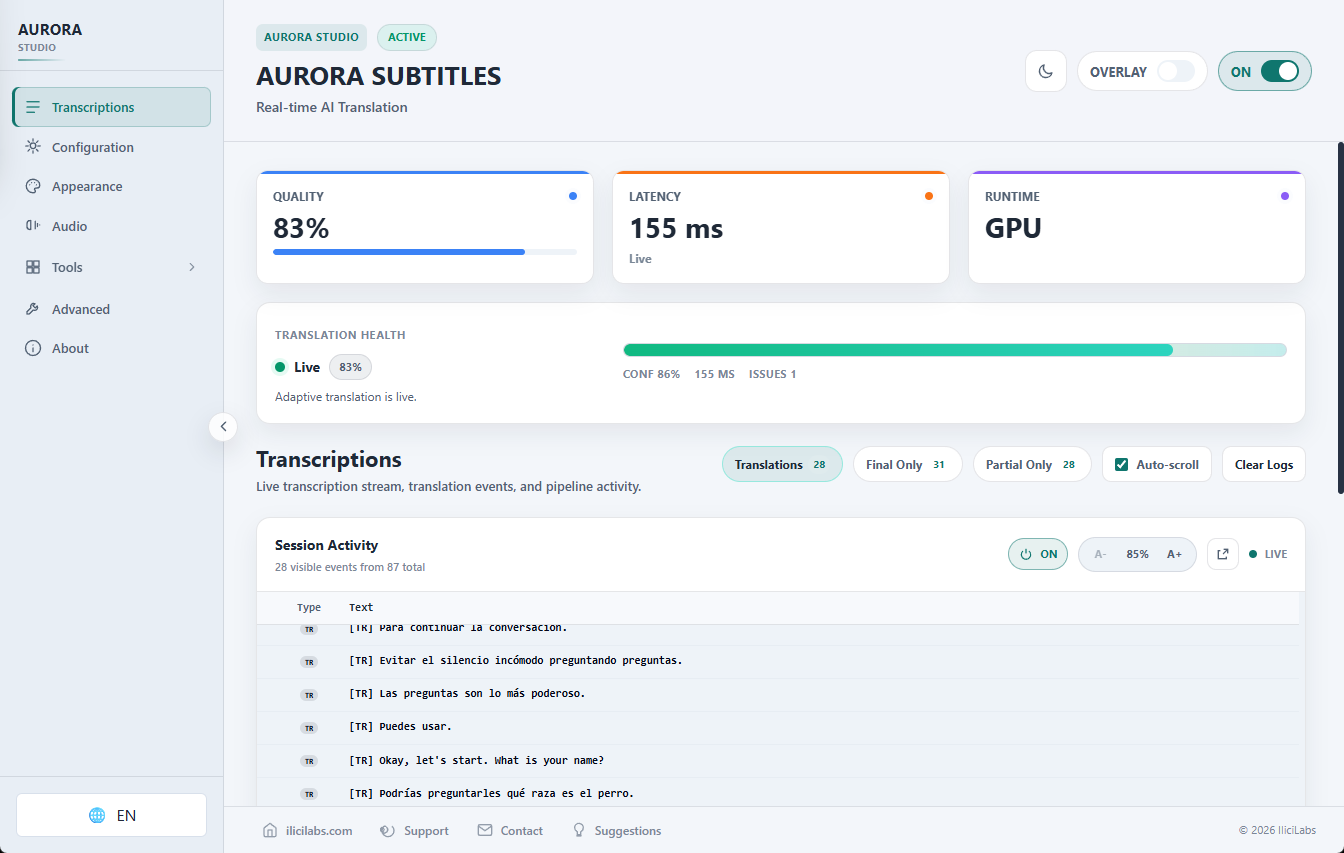
Before buying live caption software, the useful question is specific: will it handle your language pair, your audio source and your Windows PC? A demo can show the interface, but it cannot establish performance on a different computer.
Use this checklist alongside the current Aurora product requirements. Aurora is in Early Access; avoid relying on old hardware advice or a language count without checking which mode it describes.
1. Check Windows and record your hardware
The current requirement is Windows 11 64-bit. Record your processor model, installed RAM, graphics card model and available disk space. You can find the processor and RAM in Windows Settings under System → About, and inspect the GPU in Task Manager under Performance.
RAM requirements depend on the workload, and the selected models need disk space. A supported operating system alone does not guarantee smooth real-time translation under your workload.
2. Match the mode to the spoken language
Maximum Compatibility processes audio on the CPU and accepts English speech, with 51 published translation targets. It does not require an NVIDIA GPU. Do not choose it for a non-English source merely because your desired output language appears in its list.
Maximum Quality has a separate set of 51 selectable languages. It uses a compatible GPU when available and falls back to CPU automatically. Check both the source and destination in the current product language list. CPU fallback is a processing option, not a promise of the same latency as GPU acceleration.
Write down the direction explicitly: “English audio → Spanish captions” is more useful than “Spanish supported”. See the CPU-only mode guide for its intended workflow.
3. Identify where the sound comes from
For a video, meeting or voice chat playing through Windows, the relevant source is system audio. For your own voice, it is the microphone. Aurora captures these through Windows audio facilities; the actual source, device routing and audio quality still matter.
If you need both, read the experimental Both mode guide. Microphone text appears in Session Activity, not in the overlay. Do not assume that every input produces the same visible output.
Overlapping speakers, background noise, accents and other applications using the PC can affect results. Aurora focuses on spoken audio; a music track is not a representative speech test.
4. Separate local processing from internet access
Core transcription and translation run locally, but preparing and using the product is not an entirely disconnected workflow. Internet access may be needed for activation, license checks, model downloads, updates and checkout. Optional Codex features also require their online setup and account.
If your computer must remain disconnected, explain that constraint to support before purchasing. “Local processing” does not establish suitability for an air-gapped environment.
5. Check the purchase terms before paying
The published offer is a one-time payment for a lifetime license to the current Aurora Subtitles product, for one Windows installation on one PC, with Early Access updates included. Read the current checkout and product terms for your purchase.
You can view the public demo alongside the product requirements. The installer requires a valid license to activate; its availability is not evidence of an unlocked evaluation. If you need to try the software before deciding, ask support whether an evaluation is currently available and wait for confirmation. This guide does not offer a free trial or promise an evaluation key.
Send one clear compatibility question
If anything is uncertain, use the IliciLabs support contact form and include:
- Windows version and whether it is 64-bit.
- Processor, RAM and graphics card models.
- Spoken language → desired caption language.
- The application producing the audio and whether you need system sound, microphone or both.
- Any constraint such as CPU-only use or limited internet access.
Do not include passwords, license keys or private conversation recordings. These details help the team review your intended setup; they do not establish guaranteed accuracy or a fixed response time.
Once you have a valid license, begin with a short, non-private speech sample in the intended language and check readability, delay and continuity before relying on a longer session. Review important content against the original audio.